Pixel & Map Art
Convert any image into Minecraft pixel art or map art with dithering, staircasing, material lists and .litematic, .schem or map.dat export.
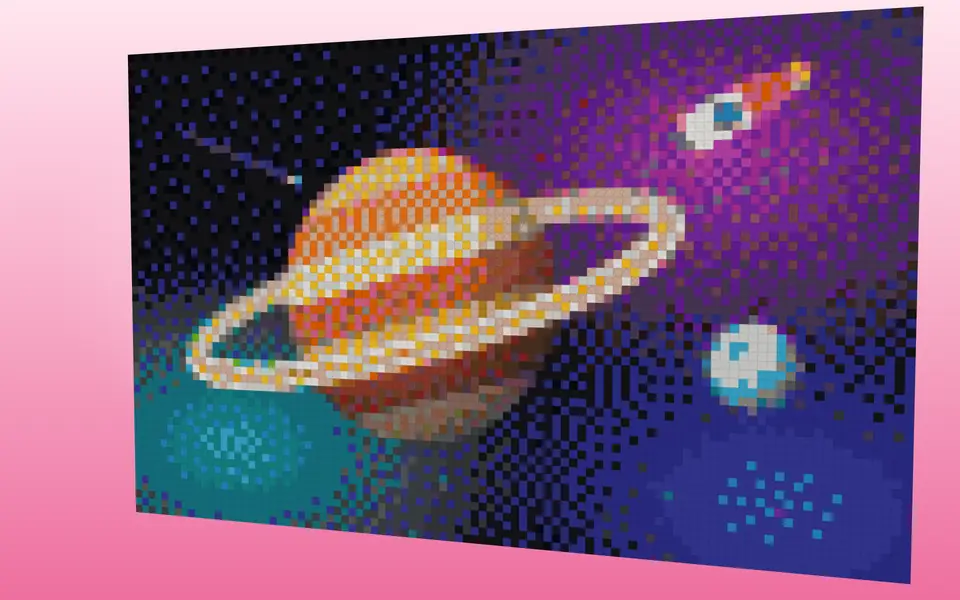
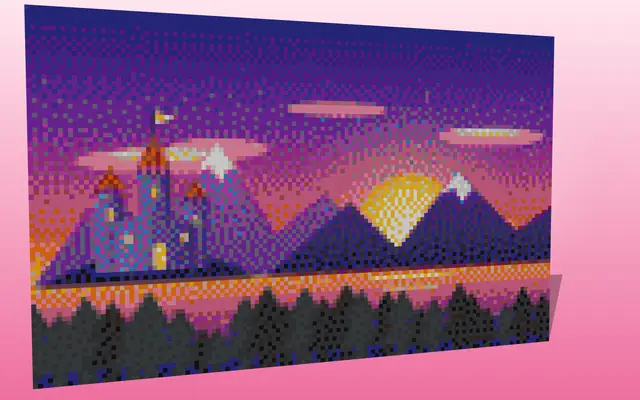
Image to Pixel Art Converter
Turn any picture into Minecraft block art: pick a palette, dithering and size, touch it up, then export a schematic, commands and a material list.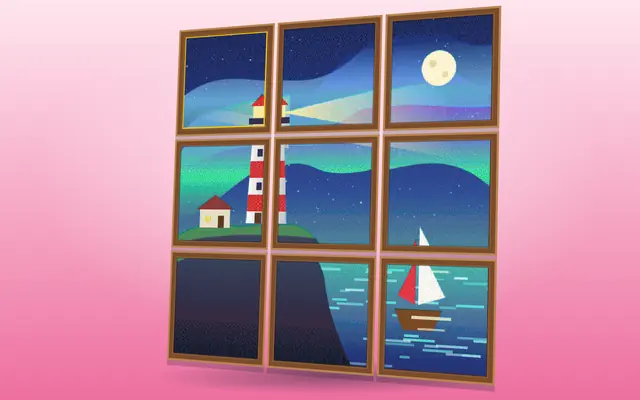
Image to Map Art Generator
Minecraft map art generator: convert any image to flat or staircase map art, with survival presets, touch-up painting, schematics and map.dat export.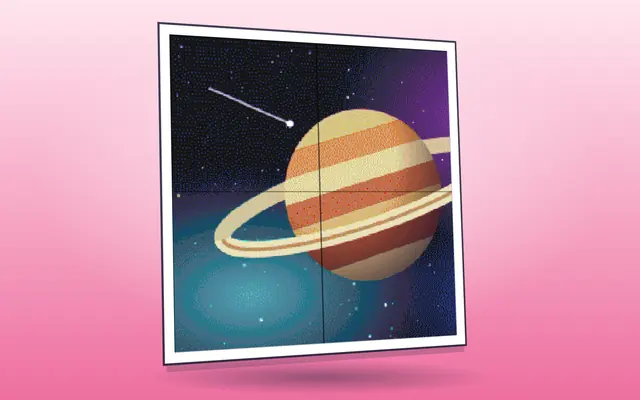
map.dat Viewer & Map to PNG
Drop Minecraft map_<n>.dat files and see them as images — exact in-game colours, map details, PNG downloads and one stitched picture of a whole map wall.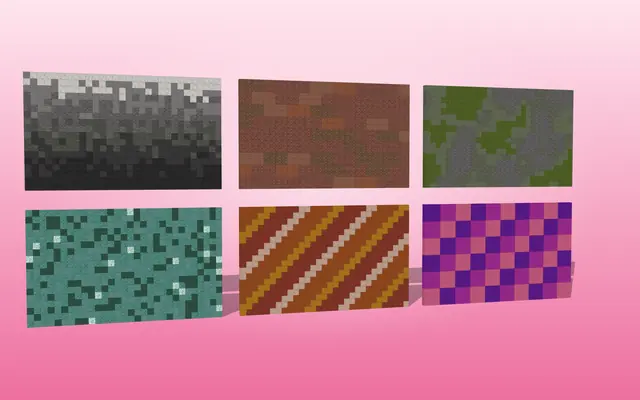
Wall Pattern & Gradient Block Mixer
Mix 2–8 Minecraft blocks into textured walls: dithered gradients, random mixes, noise, bricks and stripes, with exact block counts and schematic export.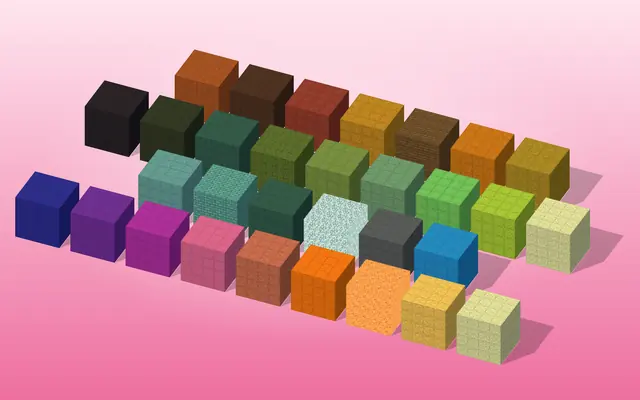
Block Palette Generator & Color Matcher
Find the Minecraft blocks closest to any colour, build block gradients, pull a palette from an image or use 20+ curated themes, with survival filters.
Minecraft pixel art and map art from your own pictures
Pixel art in Minecraft means building a picture out of blocks, one block per pixel, usually as a wall you look at. Map art is a picture laid flat on the ground and viewed through a held map, where every block's map colour counts. The two need different block palettes, which is why they are separate tools here.
Both converters take any image, shrink it to the size you choose and match each pixel to the nearest block colour, with optional dithering for smoother shading. You can touch up single blocks afterwards, then get a material list and a schematic or commands to build it. The map art tool also handles staircasing, the trick of raising blocks to get extra shades on a map.
If you are designing a build rather than copying a picture, the block palette and wall pattern tools help you choose blocks that look good together, and the map.dat viewer turns map files from a world save back into images.
Size is the first decision. A map at the closest zoom covers 128 × 128 blocks, so a picture for one map is 128 blocks wide and a larger picture becomes a wall of maps; the map art tool lines the art up with the map grid for you. Pixel art has no fixed size, but every block is one pixel, so a 64-block-wide portrait already needs a few thousand blocks. Survival filters limit the palette to blocks you can collect in quantity, which makes a big build realistic. Dithering mixes two block colours in a pattern to fake an in-between shade: it looks smoother from a distance but is harder to build by hand, so leave it off for small pieces.
Which tool do I need?
- Build a picture as a wall of blocks: Image to Pixel Art Converter
- Make a picture you see on a held map: Image to Map Art Generator
- Find blocks that match a colour or a photo: Block Palette Generator & Color Matcher
- Give a big wall texture or a colour fade: Wall Pattern & Gradient Block Mixer
- See what is drawn on map_<n>.dat files: map.dat Viewer & Map to PNG
More tools
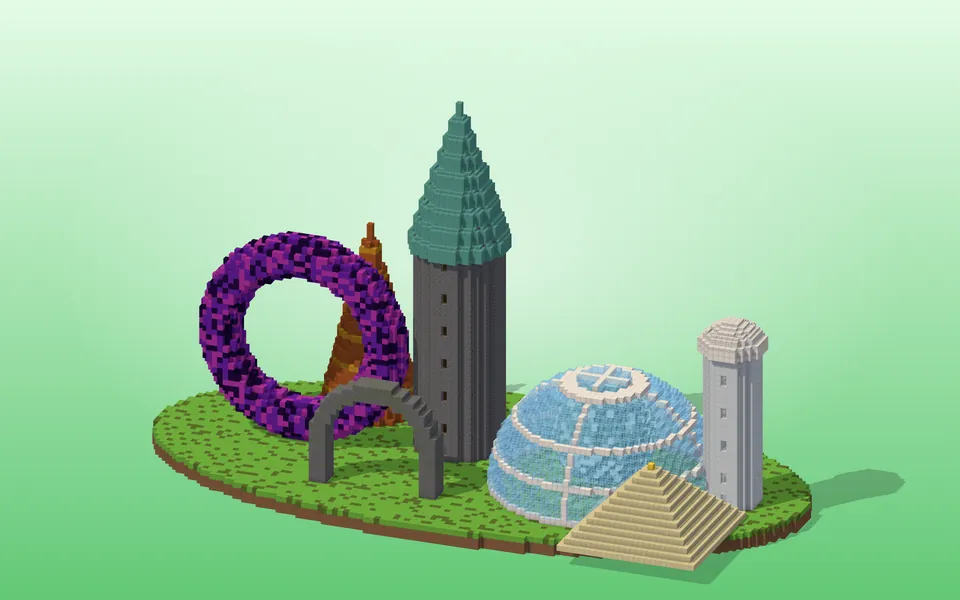 ShapesCircles, spheres, domes, cylinders, tori, spiral staircases, roofs and whole towers — block by block.
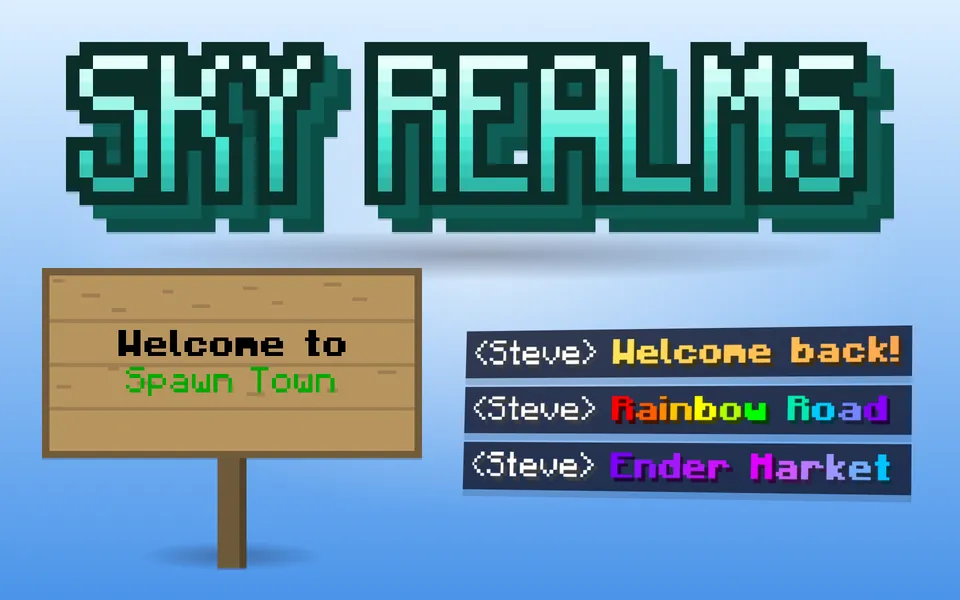 Text & StyleGradient text, color codes, Minecraft-font images, signs and books.
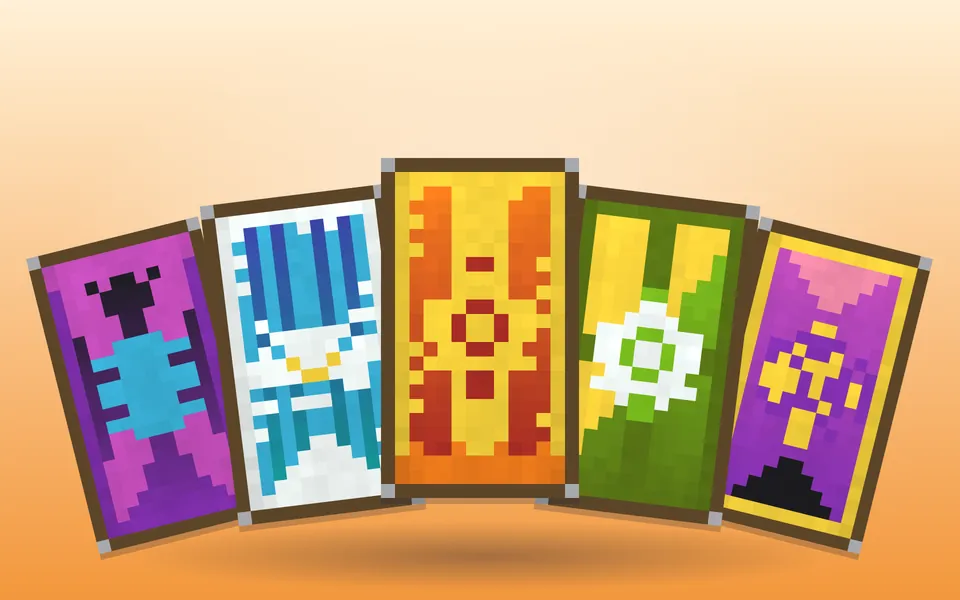 Cosmetics & ItemsBanners, shields, armor trims, fireworks, server icons and advancements.
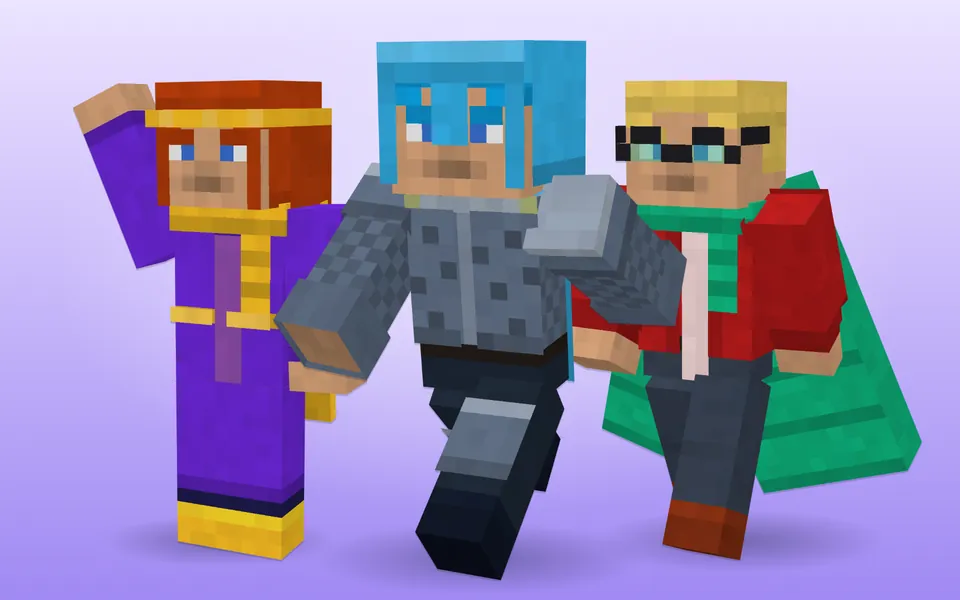 Skins & Packs3D skin and cape editors, avatars and resource-pack helpers.